- 在微软主机小帮手上登录您的个人账户。如果该应用程序未被安装到您的电脑上,请从微软商店中安装它。如果您还没有个人账户,那么请创建一个。登录后关闭微软主机小帮手。

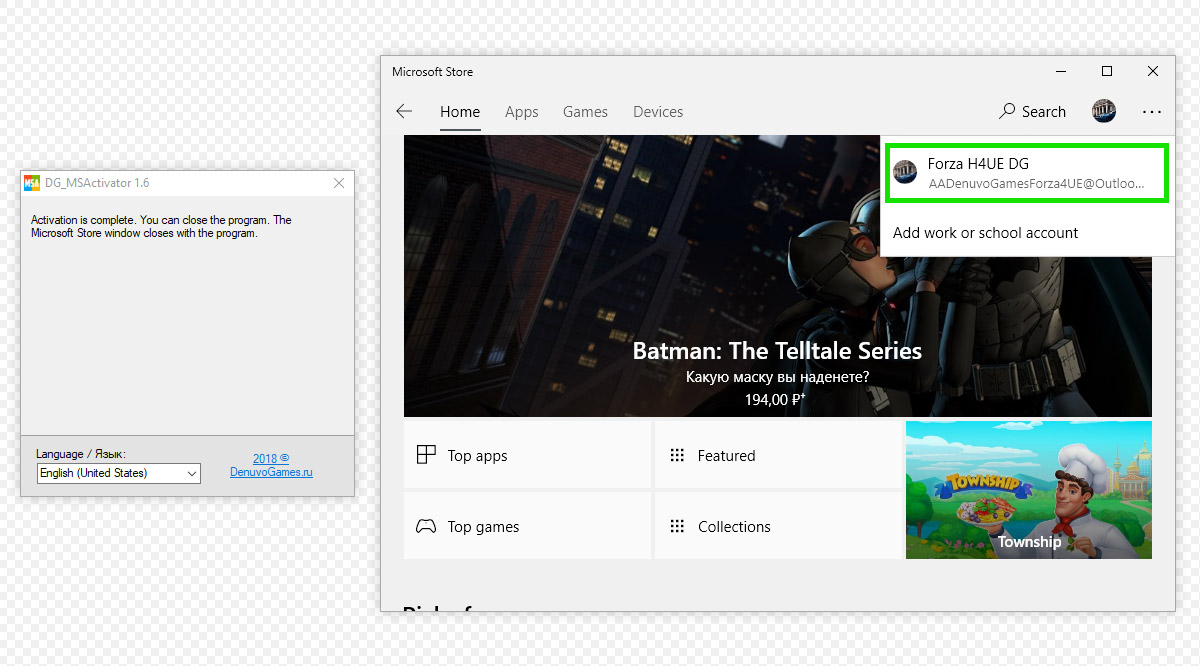
- 启动激活器(下载)。与此同时,微软商店将打开。
将激活器解压缩到您的桌面或单独的文件夹。如果启动器未能启动,请在激活过程中关闭杀毒软件。
- 请务必退出您的微软商店账户。

- 单击新账户图标,并单击登录链接。
请勿添加工作或学校账户!否则,激活将失败。

- 在“登录”窗口,选择“使用不同的账户”->“微软账户”然后单击“继续”。

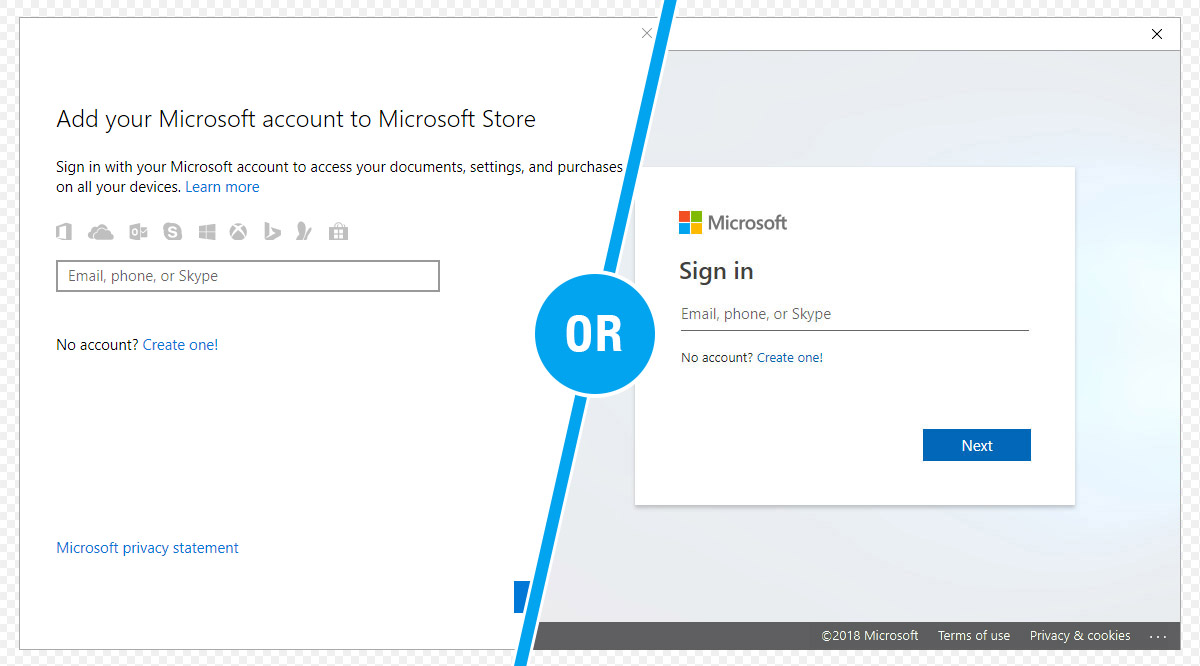
- 您将会看到“登录”或“给微软商店添加一个微软账户”窗口取决于您电脑上的微软商店版本。
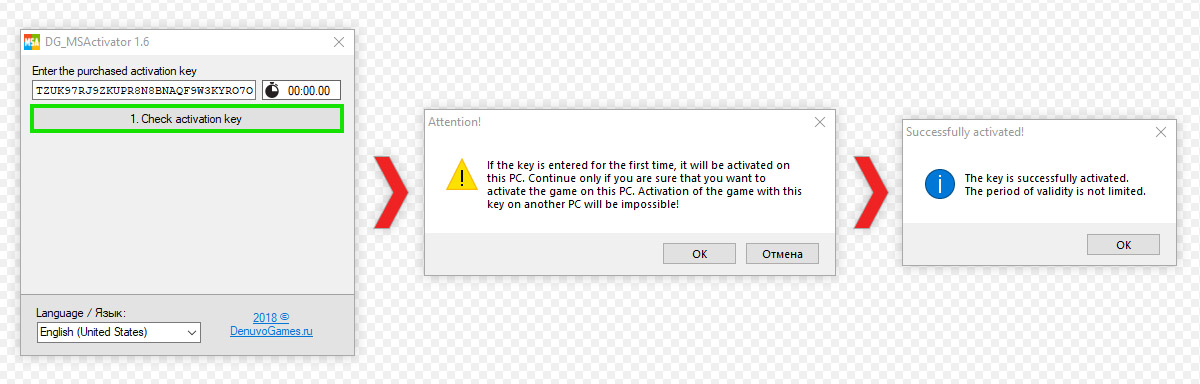
- 将购买的激活密钥输入激活器并按按键:“1.检查激活密钥”。
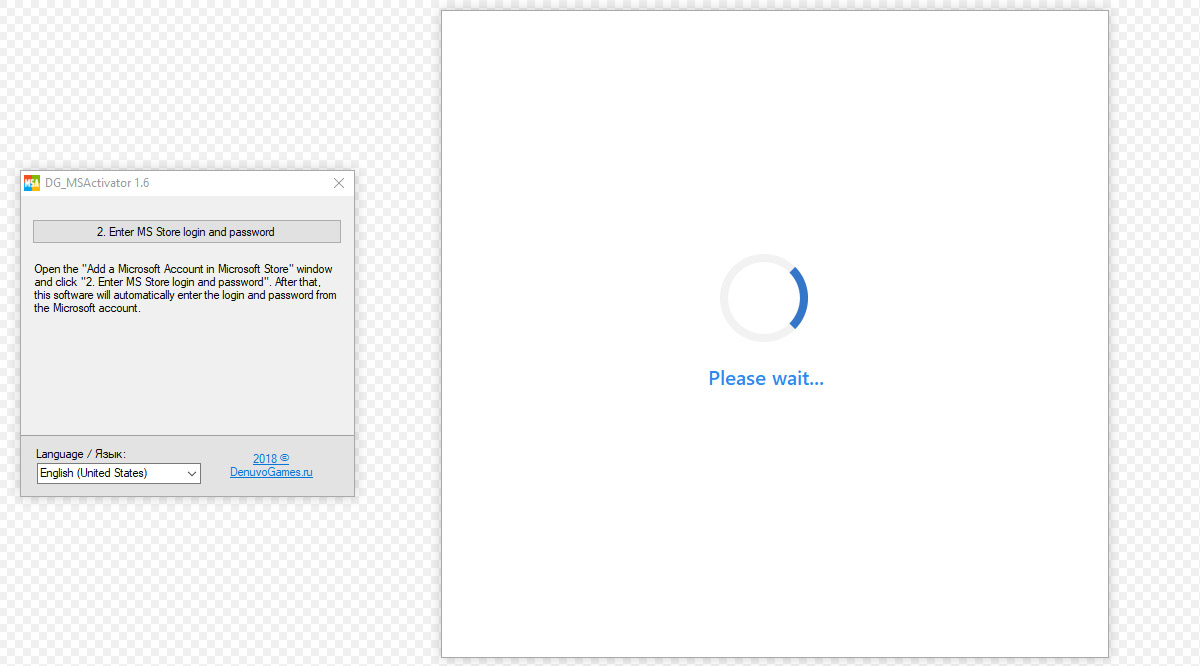
- 接下来,在激活器中按下按钮:“2.输入微软商店登录名和密码。”

- 等待激活器输入用户名和密码。
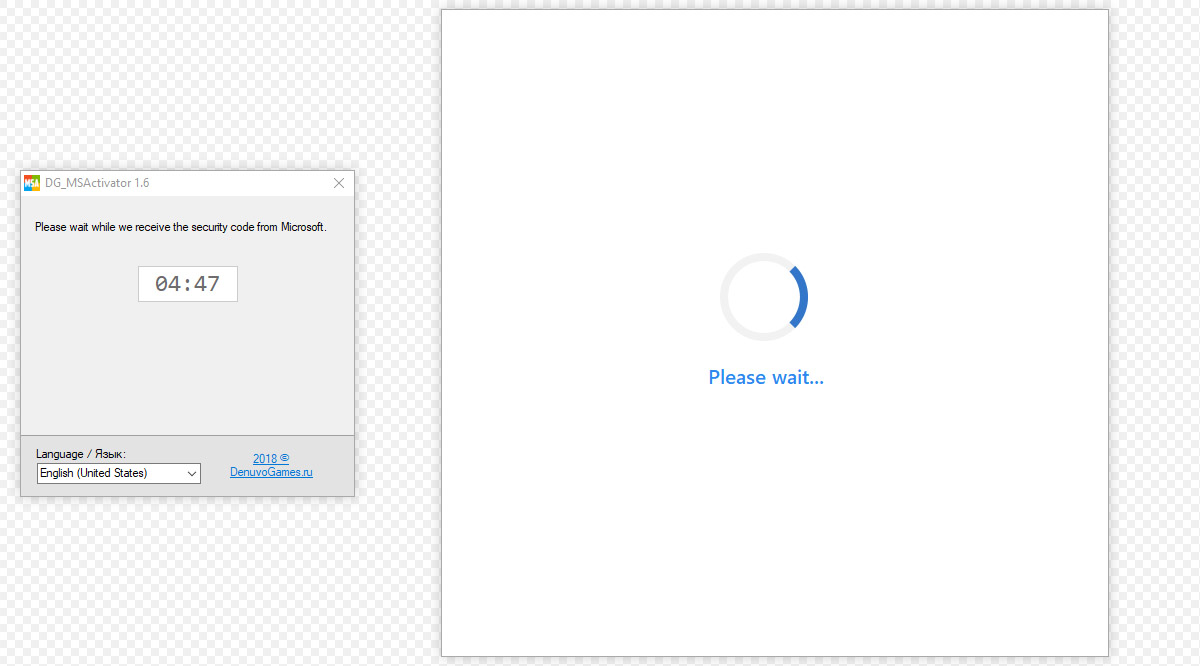
- 激活器输入额外的电子邮件后,将开始倒计时。等待激活器接收并输入微软安全代码。
- 倒数时不要使用鼠标和键盘。这可能会阻止其输入安全码,您将不得不从头开始启动激活程序。
- 如果没有收到安全代码,请仔细阅读步骤1-3。
- 倒数时不要使用鼠标和键盘。这可能会阻止其输入安全码,您将不得不从头开始启动激活程序。
- 只要输入安全码,您就可以在我们的微软账户下登录,您可以下载所购买的游戏和DLC(如果有的话)。
激活器可以关闭。

There is a translation in your language for this article: Activation Microsoft Store games using DG_MSActivator
Below is the text of the article in the original language: [zh]
使用DG_MSActivator 激活微软商店的游戏
09.10.2021
Video
MS激活器的问答
在激活微软商店账户后,您需要知道这一点。
- 激活后我应该做什么?
- 开始下载游戏
- 在您电脑上的“Xbox控制台小帮手”应用程序上登录您的个人账户(如果还没有登录的话)。它将存储所有微软游戏的存档。
- 我可以退出你的微软商店帐户吗?
是的,可以。我们的账号只需要下载游戏。因此,您可以在开始下载后立即更改您登录的帐户。
* 带有DLC的游戏例外。为了让DLC可在游戏中,您必须登录到我们的微软商店帐户直到DLC下载完毕。


- 我如何登录到另一个微软商店帐户?
- 启动微软商店
- 单击右上角的个人资料图标。
- 点击帐户,然后点击“注销”
- 再次点击右上角的个人资料图标,然后“登录”
- 从列表中选择您感兴趣的帐户,并输入帐户密码。
- 我如何再次登录到你的微软商店帐户?
退出您当前的微软商店帐户,并使用相同密钥通过激活器重新激活。在激活期间,重要的是,像第一次激活那样,选择添加“微软商店帐户”。
- 我在哪里可以找到你的微软商店帐户的密码?
您只能通过激活器登录该帐户。
- 我重新安装了Windows系统,我的帐户列表被重置了。我怎么再登录到你的账户?
只要像第一次一样,用同样的密钥,激活我们的账户。
- 发出的激活密钥的有效期是多久?
密钥没有时间限制。
- 我可以用一个激活密钥在多台电脑上激活游戏吗?
不,一个密钥=一台电脑
- 我要彻底更换处理器、主板或个人电脑。如何转移激活?
在购买货物的页面下通过聊天告知我们。我们将取消旧的激活密钥,并给您一个新的。
- 为什么DLC不可用?我还没有注销账户。
大约一个月一次,我们的微软商店账户的密码会更改。因此,您需要注销您的帐户,并通过激活器用相同的密钥重新激活。
- 我怎么改昵称?
您在游戏中的昵称是从您的“Xbox控制台小帮手”应用程序的个人帐户设置中获取的。更改方法是一样的。
- 我能在Xbox上玩吗?
不,只能用Windows 10电脑。
- 激活后,我会成为所购买的帐户的所有者?还是会有其他人能进入这个账户?
账户属于我们。我们只允许您通过激活从我们的账户下载游戏,并可无限制地享受授权游戏的所有功能。出于安全原因,我们不授予对我们帐户的完全访问权。
- 我总是被踢出游戏,因为有人在玩!
在“Xbox控制台小帮手”应用程序上登录您的个人账户,游戏崩溃就会停止。
- 我的游戏每15-30分钟就会崩溃一次,我该怎么办?
这个问题在一些电脑上会发生。您可以使用本文中的方法来解决它。https://zh.denuvogames.store/articles/microsoft-store%E6%B8%B8%E6%88%8F%E5%9C%A815-30%E5%88%86%E9%92%9F%E5%86%85%E5%B4%A9%E6%BA%83%E5%88%B0%E6%A1%8C%E9%9D%A2
- 激活器里有病毒吗?
没有,激活器是干净的。你的杀毒软件被触发是因为激活器上保护系统免受黑客入侵的装置。
- 我不能激活,或者游戏有问题。
在这种情况下,可以使用TeamViewer程序手动激活并远程控制PC来解决问题。只要在购买货物的页面上以聊天的形式告知卖家就行了。
Possible problems and ways to solve them
The game does not start after installation
For possible solutions, see this manual https://denuvogames.store/articles/Microsoft-Store-game-does-not-run-on-PC
Error 0x803f81f5 or 0x803FB107 / At the time of downloading the DLC for Forza Horizon 4
Solving the problem 0x803f81f5 / 0x803FB107 when downloading DLC for Forza Horizon 4 https://denuvogames.store/articles/Solving-the-problem-0x803f81f5-when-downloading-dlc-for-Forza-Horizon-4?lang=en

Error 0x803f8001 / Error during game launch
To solve this problem, you will need to log out of Microsoft Store account and re-activate via the activator with the same key, then:
1. We put on the download any free application that is not installed (Planner 5D, Autodesk SketchBook, Instagram or Viber).
2. After you start downloading the app, cancel it.
3. Start the game (If it didn't help immediately, then wait 5-10 minutes and repeat the instructions).
1. We put on the download any free application that is not installed (Planner 5D, Autodesk SketchBook, Instagram or Viber).
2. After you start downloading the app, cancel it.
3. Start the game (If it didn't help immediately, then wait 5-10 minutes and repeat the instructions).
Error 0x80073CFB / Error while installing the game from the Microsoft Store
This error is a consequence of incomplete removal of a pirated copy of the game Forza 4. You need to delete all the files and remnants of the registry of the undeleted game. The registry can be cleaned through the ccleaner program. First of all, check and delete the game via the "Start" menu, as shown in the screenshot below.

Error 0x80073D22 / Error while installing the game from the Microsoft Store
Error while loading the game / Error 0x80070057
1. Open the search and enter gpedit.msc
2. Then Computer configuration => Administrative templates => Windows Components => Deploying an application package
3. Search Disable application installation on non-system volumes and run.
4. In the window that opens, switch the radio button to "Disabled" and click "Apply" as shown in the screenshot below

If this method does not help, install the game on system disk or a disk "A".
Instructions on how to change the disk name here
1. Open the search and enter gpedit.msc
2. Then Computer configuration => Administrative templates => Windows Components => Deploying an application package
3. Search Disable application installation on non-system volumes and run.
4. In the window that opens, switch the radio button to "Disabled" and click "Apply" as shown in the screenshot below
If this method does not help, install the game on system disk or a disk "A".
Instructions on how to change the disk name here
Error 0x80073D26 / Error while installing the game from the Microsoft Store
Install the latest Windows update
Microsoft has published an update to fix this issue. To install the update, follow these steps:
1. Select the Start button Win in the lower-left corner of the main screen, and then select Settings.
2. Select Update & Security > Check for updates.
3. Select View optional updates, and then select update KB5004476 from the list.
4. Select Download and install.
5. Once the update is complete, restart your device.
6. You should now be able to install, update, and launch games.
Still having a problem?
Try deleting the Gaming Services registry keys and reinstalling the Gaming Services app on your Windows 10 device:
1. Right-click the Start button Win in the lower-left corner of the main screen, and then select Windows PowerShell (Admin).
2. In the Administrator: Windows PowerShell screen, type the following command and press Enter:
Text
Get-AppxPackage *gamingservices* -allusers | remove-appxpackage -allusersText
Remove-Item -Path "HKLM:\System\CurrentControlSet\Services\GamingServices" -recurseText
Remove-Item -Path "HKLM:\System\CurrentControlSet\Services\GamingServicesNet" -recurse5. Right-click the Start button Win in the lower-left corner of the main screen, and then select Windows PowerShell (Admin).
6. In the Administrator: Windows PowerShell screen, type the following command and press Enter:
Text
start ms-windows-store://pdp/?productid=9MWPM2CQNLHN8. Try to install or launch the game again.
Error 0x80070057 / Error while installing the game from the Microsoft Store
1. Open the search and enter gpedit.msc
2. Then Computer configuration => Administrative templates => Windows Components => Deploying an application package
3. Search Disable application installation on non-system volumes and run.
4. In the window that opens, switch the radio button to "Disabled" and click "Apply" as shown in the screenshot below
If this method does not help, install the game on system disk or a disk "A".
Instructions on how to change the disk name here
Error 0x80070005 / Error during disk change installing new applications
This problem usually occurs after reinstalling Windows. You need to delete the folders WindowsApps, WPSystem and WUDownloadCache from the disk on which you plan to install the game.

If the folders are not deleted go to the instructions How to delete the WindowsApps folder in Windows 10
Error 0x80073CF9 / Error during preload or upload
1. Press the keyboard shortcut "Windows + X", and then click on the command prompt (Admin).
2. Click Yes in the User account management message.
3. Restart your computer and go back to the store. Enter the following commands to run:
rename c:\windows\SoftwareDistribution softwaredistribution.old
net start wuauserv
If any of these commands fail, start your computer in safe mode and repeat the commands.
2. Click Yes in the User account management message.
3. Restart your computer and go back to the store. Enter the following commands to run:
Text
net stop wuauserv rename c:\windows\SoftwareDistribution softwaredistribution.old
net start wuauserv
If any of these commands fail, start your computer in safe mode and repeat the commands.
Error 0x80070424 / Error while loading the game
Reinstall the app "Game Services" on a Windows 10 device:
Right-click the Start button in the lower-left corner of the home screen and select Windows [/b]PowerShell (administrator).
On the Administrator: Windows PowerShell screen, type the following command and then press ENTER:
In the same window, type the following command and press ENTER:
Install the app on this page and select Yes when you receive the User Account Control request (UAC).
Restart your device and try reinstalling the game.
Right-click the Start button in the lower-left corner of the home screen and select Windows [/b]PowerShell (administrator).
On the Administrator: Windows PowerShell screen, type the following command and then press ENTER:
Text
get-appxpackage Microsoft.GamingServices | remove-AppxPackage -allusersIn the same window, type the following command and press ENTER:
Text
start ms-windows-store://pdp/?productid=9MWPM2CQNLHNInstall the app on this page and select Yes when you receive the User Account Control request (UAC).
Restart your device and try reinstalling the game.
Error 0x409 and 0x80070422 / Error logging in to your Xbox live account
You need to check and enable the disabled Windows services from the list below:
- Xbox Accessory Management Service
- СXbox live network service
- Save games to Xbox live
Error 0x406 / When you launch the "Xbox Console Companion" app
- RunPowerShell on behalf of the administrator.
- Enter the following command and press Enter
TextGet-AppxPackage -AllUsers| Foreach {Add-AppxPackage -DisableDevelopmentMode -Register “$($_.InstallLocation)\AppXManifest.xml”} - After the recovery procedure is complete, restart your computer.
Error 0xbba / When you try to log in to the "Xbox Console Companion" app
The error occurs if you have disabled services related to Xbox Live. To remove the error, do the following:
– Press Windows + R to open the "Run" dialog box.
– Enterservices.msc and press Enter to open the Services window.
– Double-click on the service "Xbox Live Network Service" and start it.
– Press Windows + R to open the "Run" dialog box.
– Enterservices.msc and press Enter to open the Services window.
– Double-click on the service "Xbox Live Network Service" and start it.
«An unknown error occurred. Please try again later» / Error after starting the game
You need to check and enable the disabled Windows services from the list below:
– Xbox Accessory Management Service
– Xbox Live Authentication Manager
– Xbox Live Network Service
– Save games to Xbox Live
– Xbox Accessory Management Service
– Xbox Live Authentication Manager
– Xbox Live Network Service
– Save games to Xbox Live
To use this device here, first remove the other device / Error during game installation
"You have reached the limit on the number of devices that can be used with games and apps from the Store."

To solve this problem, you need to log out of your current Microsoft Store account and re-activate via the activator with the same key.
To solve this problem, you need to log out of your current Microsoft Store account and re-activate via the activator with the same key.
Blocked privilege / Error during the game
Screenshot of the error

"This feature is blocked in the Xbox live Parental Control settings"
To solve this problem, you need to:
1. Log out of your Xbox live account in the Xbox Console Companion app.
2. Create a new Xbox live account that must include your age of 18+
3. Log in to a new account and play with it (game progress between Xbox live accounts is not transferred).
"This feature is blocked in the Xbox live Parental Control settings"
To solve this problem, you need to:
1. Log out of your Xbox live account in the Xbox Console Companion app.
2. Create a new Xbox live account that must include your age of 18+
3. Log in to a new account and play with it (game progress between Xbox live accounts is not transferred).
Insert the Microsoft Flight Simulator / Error disk while the game is running
Screenshot of the error

To solve this problem, you need to log out of your current Microsoft Store account and re-activate via the activator with the same key.
To solve this problem, you need to log out of your current Microsoft Store account and re-activate via the activator with the same key.
Error FH101 / Error during game launch
A processor with at least 4 logical cores is required; otherwise, an error will occur with this code.
Error FH201 / Error during game launch
The video card does not support the DX12 functionality required for the game to work.
Error FH202 / Error during game launch
The video card has less than 2 GB of video memory.
Error FH203 / Error during game launch
The video card does not support the DX12 functionality required for the game to work.
Error FH204 / Error during game launch
The video card does not support the DX12 functionality required for the game to work.
Error FH301 / Error during game launch
You need to update the video card driver, the latest AMD and NVidia video card drivers are required for the game to work properly.
Error FH401 / Error during game launch
Not enough memory. The game requires at least 8 GB of RAM.
Error FH501 / Error during game launch
The video card does not support DX12.
Error FH601 / Error during game launch
Microsoft Media Foundation failed to load. You may need to install the components:
https://www.microsoft.com/en-us/download/details.aspx?id=48231
https://www.microsoft.com/en-us/download/details.aspx?id=48231
The "install" game button is not active
Update Windows to 1909 or later. If it doesn't help, reinstall the Microsoft Store

Activator error - module not found "cvextern"
After starting the activator, a folder should appear in the same folder with it "lib". Go to it, then to the " x64 " folder and copy all the files to the system32 folder (you can open it by pressing the Win+R key combination and entering the address %SystemRoot%\System32 ). After that, try running the activator again.
Sea of Thieves doesnt show up in the Microsoft Store search
- Press the combination Win+R, a window opens "Run"
- Paste the command below and press Enter
Textms-windows-store://pdp?productId=9p2n57mc619k
Are you playing Forza Horizon 4 somewhere else
Make sure that you are logged in to your personal Xbox live account in the Xbox Companion app, and not the purchased one. If this does not help and you get a notification like in the screenshot below, then only resetting Windows to factory settings or completely reinstalling Windows will help.

Network or Internet connection problems
- First of all, turn on the automatic setting of time and time zone. Often problems with the network occur due to incorrect time on the PC.
Links to the official ways of solving this problem:
Links to the official ways of solving this problem: